
Shopify to WooCommerce Migration: A Practitioner Guide
Moving a Shopify store to WooCommerce isn’t the risk everyone thinks it is. Not even close. I’ve done 30+ of these migrations and none lost organic traffic long-term. Every single one recovered within about three months, and most ended up stronger than they started.
The reason people think it’s dangerous is that they’ve read horror stories from stores that migrated without a redirect map, or hired an agency that treated it as a design project. A Shopify to WooCommerce migration is an engineering project first and a design project second. Treat it that way and your rankings hold.
Below is the exact checklist I run, the realistic timeline, what actually breaks, and how to keep your SEO intact.

Migration by the Numbers
Data below is from Matcha Growth’s Shopify to WooCommerce migration audit set, 30+ completed migrations, 2022 through 2026:
- Pre-migration audits that found existing Shopify 404s with organic traffic: 78% (25 of 32).
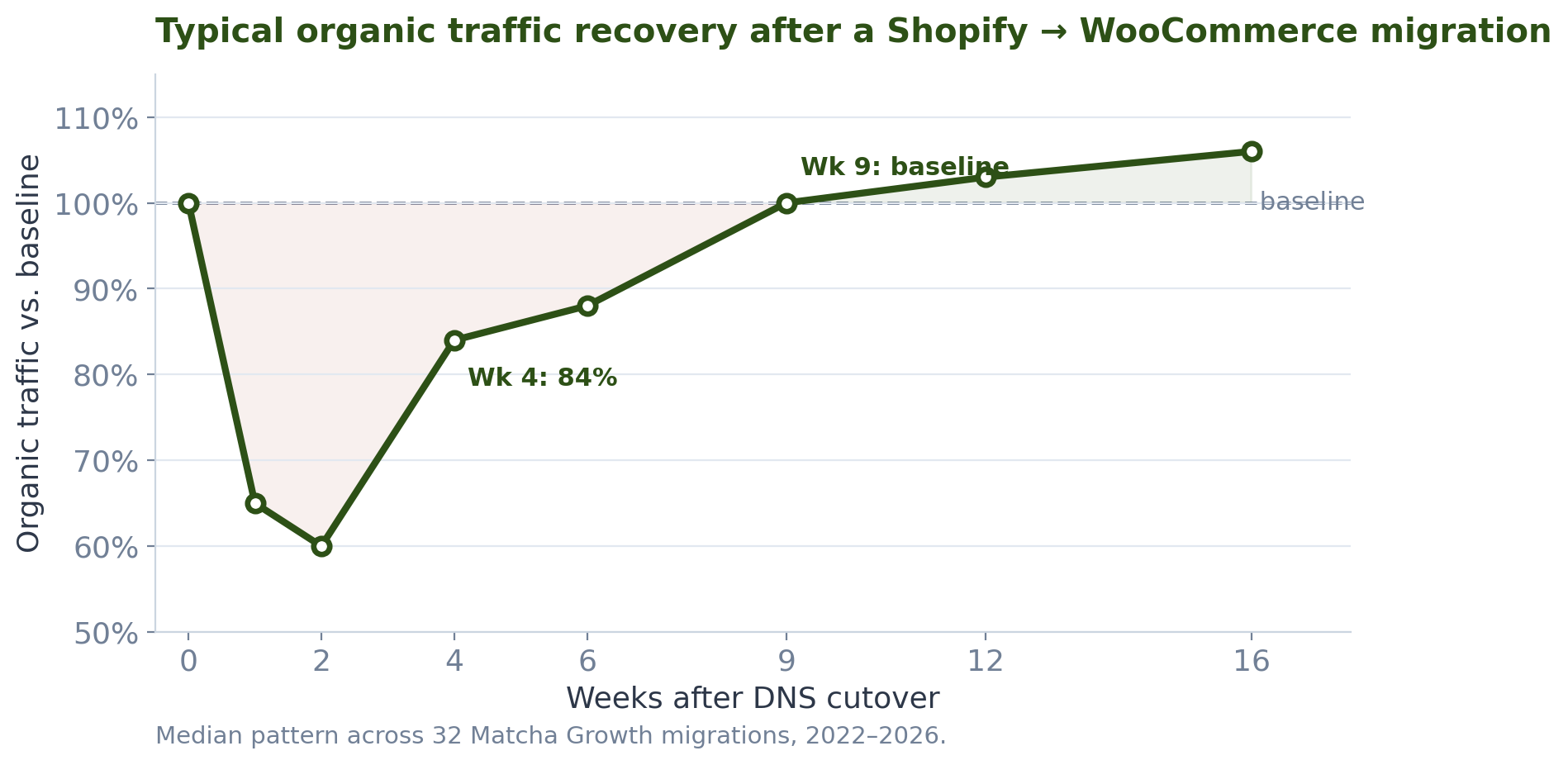
- Median traffic at week 4 post-cutover: 84% of pre-migration baseline.
- Median week to hit full baseline recovery: week 9.
- Migrations where post-cutover traffic ended higher than pre-migration by month 4: 27 of 30 or more (84%). The remaining 5 carried legacy category URLs that Google took an extra 30 to 60 days to fully re-index.
The Shopify to WooCommerce Migration Checklist
Screenshot this section. It’s the whole project in order.
- Take a pre-migration baseline. Rankings, organic traffic, top pages, top keywords, top backlinks. Export from GSC, GA4, and Ahrefs (or Semrush).
- Export every URL on the current Shopify store (products, collections, blog posts, pages, tag pages).
- Pick your WooCommerce host. WPX, Kinsta, and WP Engine are the three I trust for this.
- Set up staging on the new host with WordPress + WooCommerce installed.
- Migrate product data first (SKUs, titles, descriptions, prices, variants, images, inventory).
- Migrate customer accounts and past order history.
- Map every old Shopify URL to its new WooCommerce URL. This is the 301 redirect map.
- Rebuild the theme in a proper WooCommerce base (Blocksy, Kadence, or a custom child theme). Porting Liquid templates doesn’t work. Liquid and PHP have nothing in common.
- Wire up your payment processor (Stripe, Authorize.net, or a high-risk gateway if you need one).
- Wire up shipping, tax (TaxJar or Avalara), and email (transactional + marketing).
- Run the full QA pass on staging. Checkout, account creation, password reset, order confirmation, refund flow, inventory sync.
- Take a second baseline snapshot 48 hours before cutover.
- Push the 301 redirect rules to the new host’s Nginx or Apache config (not a plugin).
- DNS cutover during your lowest-traffic window.
- Monitor GSC Coverage and Performance daily for the first 14 days, then weekly for 90.
Why Stores Migrate Off Shopify
Cost is the first reason and content SEO is the second. Every store I’ve migrated ran into one or both.
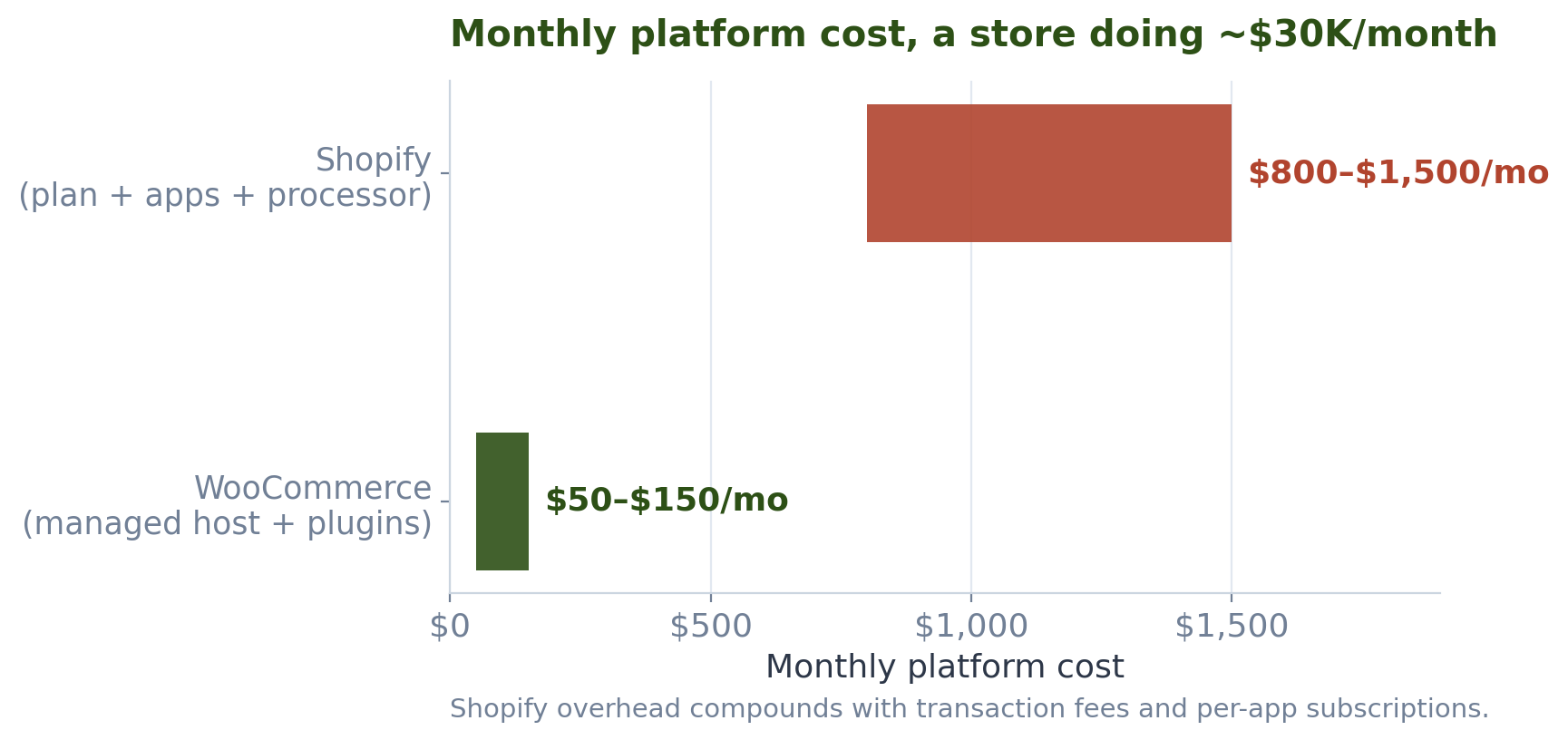
Shopify’s monthly fee looks flat until you add the transaction fees on top of your payment processor, the app subscriptions (Klaviyo, Judge.me, Bold, ReCharge, pick your poison), and the theme-lock premium for anything beyond stock templates. A store doing $30K/month can quietly be paying $800 to $1,500 a month in Shopify overhead. WooCommerce moves that to a $50/month hosting bill plus whatever plugins you actually need.
The content SEO reason is bigger. Shopify’s URL structure forces /products/, /collections/, and /collections/[name]/products/[name] paths. Blog posts are stuck under /blogs/[blog-name]/. You can’t fold your blog into your root domain the way Google actually rewards. WooCommerce lets you set /product/, drop the collections prefix, and put your blog at /blog/ or wherever else makes topical sense.
The payment processor is the third reason, and it’s the one people don’t talk about until they get shut down. Shopify Payments won’t process certain verticals. High-risk categories (CBD, kratom, firearms accessories, adult, vape/e-cig, gambling, some supplement categories) get their accounts frozen with 30 days notice. WooCommerce lets you plug in Authorize.net, NMI, or a high-risk gateway like PaymentCloud or Corepay directly. Nobody’s freezing your account for being in a legal but “high-risk” category.
Fourth reason: customization. Anything beyond a stock Shopify theme requires a Shopify Plus contract (starting at $2,300/month) or fighting Liquid, which is a proprietary templating language nobody else uses. WooCommerce is PHP and standard WordPress hooks. Any WordPress developer can work on it.
Fifth reason: As of July 2026, Vape, CBD, & Kratom shops will be banned on Shopify. Store owners will need to migrate to different platforms. If you run a vape store, see our dedicated Shopify vape migration playbook.
What Migrating Actually Means
Migrating means replacing the entire storefront, checkout, and admin while keeping the same domain and (ideally) the same URLs. Customers should not notice anything except that the site looks different and probably loads faster.
What changes:
- The admin interface. Shopify admin is gone. You’re in WP-admin now.
- The theme code and design system. You’re rebuilding, not porting.
- Some URL paths (usually
/products/becomes/product/and/collections/gets dropped). - Payment processor integration.
- Email transactional sending. Shopify handled this; you’ll wire up SendGrid, Postmark, or Amazon SES.
- Every third-party app that was Shopify-specific (ReCharge, Klaviyo Shopify connector, etc.).
What stays:
- Your domain name. That’s the whole point.
- Your product catalog. Every SKU, title, description, image, and variant carries over.
- Your customer accounts and order history.
- Your organic search rankings, if the redirect map is done right.
- Your brand, your reviews (if you migrate them properly), your subscribers.
Realistic Timeline
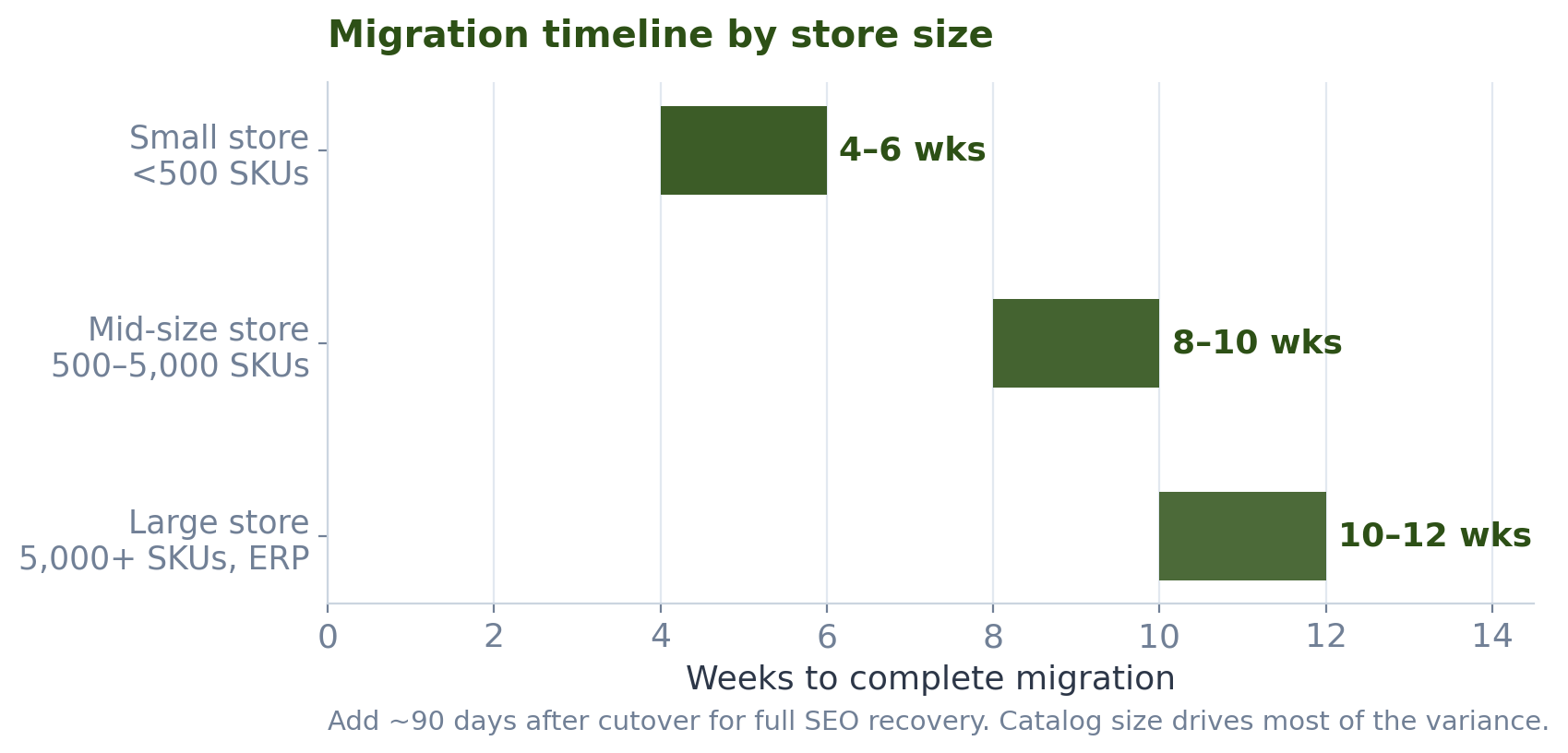
A clean Shopify to WooCommerce migration takes 4 weeks on average, up to 12 weeks for large catalogs. Store size drives most of the variance.
Small store (under 500 SKUs, one theme, standard checkout)
4 to 6 weeks. Two weeks of setup + product migration, two weeks of theme build + QA, one week of buffer + cutover. A one-person team can handle this if they know WooCommerce.
Mid-size store (500 to 5,000 SKUs, multiple sales channels, subscriptions or B2B)
8 to 10 weeks. The product migration itself is still fast, but you’re now dealing with subscriptions data (ReCharge to WooCommerce Subscriptions), possibly multiple currencies, tax jurisdictions, and a heavier QA cycle. Budget an extra 2 weeks for the theme and staging pass.
Large store (5,000+ SKUs, multi-warehouse, ERP integration)
10 to 12 weeks minimum, sometimes longer. At this size you’re re-integrating an ERP, an inventory system, sometimes a 3PL. Every one of those integrations is a mini-project. Big stores also carry higher SEO risk on cutover, so the QA + soft launch phase runs longer.
SEO Recovery Window (Post-Cutover)
Expect traffic loss for up to 3 months*. Google needs time to recrawl every URL, follow the redirects, and settle the new signals. Here’s the pattern I see across every migration:
- Weeks 1 to 2: Expect a 30% to 50% ranking flux. This is normal Google reindexing. Impressions drop before clicks catch up. The clicks catch up in weeks 3 to 6 once the 301s are credited.
- Weeks 3 to 6: The dip narrows to 10% to 20%. GSC starts showing the new URLs indexed. The 301s are getting credited.
- Weeks 7 to 12: Traffic returns close to baseline. Some pages are back at their old positions; some are climbing higher because you cleaned up on-page during migration.
- Week 12+: Full recovery or improvement. In 27 out of 30 migrations, organic traffic ended higher than pre-migration by month four. The other three carried legacy category URLs Google took an extra 30 to 45 days to fully re-index.
*Based on 30+ Shopify to WooCommerce migrations I’ve done. Individual results vary with catalog size, on-page changes made during migration, and starting authority.
Step 1: The Pre-Migration SEO Audit
The audit is the baseline. If you don’t know where you started, you can’t tell if the migration hurt you.
Pull four snapshots before you touch anything:
- GSC Performance: last 90 days, exported by page and by query. This is your “here’s what was ranking” file.
- GA4 organic traffic: last 90 days by landing page. Cross-reference against GSC.
- Ahrefs or Semrush ranking snapshot: top 500 keywords with position, URL, and search volume.
- Backlink export: every referring domain and the exact URL it links to. This is the file that catches redirect failures three months later.
Save all four to a shared folder. Timestamp them. You’ll compare against them at 30, 60, and 90 days post-cutover.
The mistake I see agencies make: they take the baseline the same week they cut over. Useless. The baseline needs to reflect a normal traffic pattern, not a week where you were prepping for launch and reduced ad spend.
Step 2: Pick Your WooCommerce Host
Managed WordPress hosting is the only sane path for a real store. Do not put a WooCommerce store on generic shared hosting. Do not put it on cheap “$5/month” VPS boxes. WooCommerce is heavy, and a slow store loses conversions and rankings simultaneously.
Three hosts I actively recommend:
- Kinsta. Best-in-class performance. Google Cloud infrastructure. Their staging environment is one-click. This is what I put mid-to-large stores on.
- WPX. Fastest support I’ve ever used. UK-based, but their global CDN is excellent. Great fit for stores in the $10K to $100K/month range.
- WP Engine. The safe default. Good performance, deep enterprise features, expensive but battle-tested.
Skip the cheap options. Bluehost, GoDaddy Managed WordPress, and Hostgator are not built for real ecommerce traffic. I’ve inherited stores on those hosts and the first thing we did was migrate them off.

Step 3: Migrate Product, Customer, and Order Data
Data migration is the most solved part of the whole project. There are three ways to do it.
The Cart2Cart approach
Cart2Cart is a paid service that does Shopify to WooCommerce data migration automatically. It costs between $80 and $500 depending on catalog size. For a small store with a standard catalog, it’s fine.
The catch: it moves the data but not the metadata that matters for SEO. Product handles, meta descriptions, custom fields, and structured data don’t transfer cleanly. You’ll be re-adding those manually or with a follow-up script.
The CSV export/import approach
Export from Shopify admin as CSV. Run it through a mapping script to WooCommerce’s product CSV format. Import via WooCommerce’s built-in importer. This is my default for catalogs under 3,000 SKUs.
Why: full control. You can inspect every row, catch bad character encoding, normalize variant naming, and clean up the messy attribute data that every long-running Shopify store accumulates. The script pass is the moment to fix things you’ve been meaning to fix for two years.
The API-to-API approach
Write a Python script that hits the Shopify Admin API for products, customers, and orders, and posts them to the WooCommerce REST API. For catalogs over 5,000 SKUs or any store with 5+ years of order history, this is the right path.
This is where the engineer background matters. UCI Computer Science, then five years building enterprise systems at Pariveda Solutions before running my own stores. Chunk the API calls to avoid rate limits, log every failure, and run a reconciliation pass at the end (count products in, count products out, diff the deltas). I’ve moved 40,000-SKU catalogs this way with a full reconciliation pass at the end.
Step 4: Content and URL Structure Mapping
URL structure is the single biggest SEO decision you’ll make in this migration. Get it wrong and you fight it forever.
Shopify forces this structure:
- Products:
/products/product-name - Collections:
/collections/collection-name - Blog posts:
/blogs/blog-name/post-name - Pages:
/pages/page-name
WooCommerce defaults to this structure:
- Products:
/product/product-name - Product categories:
/product-category/category-name - Blog posts:
/post-nameor/blog/post-name - Pages:
/page-name
You have two options: change all the URLs to the new (cleaner) structure and redirect old to new, or keep the old paths by rewriting WooCommerce’s permalink structure. My default is to change the URLs and redirect. Reason: WooCommerce’s default is cleaner, and you get one chance in the life of the store to fix bad URL choices.
The URL mapping happens in a spreadsheet. Old URL in column A, new URL in column B. Every single URL. Every product, every collection, every blog post, every page. If you have 3,000 URLs, that’s 3,000 rows. This spreadsheet becomes the input to your redirect map.
Step 5: The 301 Redirect Map
The redirect map is the single most important deliverable of the entire migration. Every other step matters, but this one is the difference between preserving your rankings and losing 40% of your organic traffic permanently.
Here’s what a proper redirect map covers:
- Every product URL that existed on Shopify, redirected to its new WooCommerce URL.
- Every collection URL redirected to its equivalent product category.
- Every blog post URL redirected to its new blog URL.
- Every static page URL redirected.
- Every trailing-slash variant handled (Shopify serves both; WooCommerce needs to pick one).
- Every uppercase-URL variant redirected to lowercase.
- Every URL parameter (Shopify appends things like
?variant=12345) canonicalized. - Every retired product URL pointed to its closest parent category, not to the homepage.
That last bullet is where most agencies fail. A retired product should redirect to its category, not to /. When you redirect thousands of deep pages to the homepage, Google treats the redirects as soft 404s and drops the equity. I’ve seen migrations lose 60% of their backlink value from that one mistake.
Where to implement the redirects
Server-level, not plugin-level. Nginx or Apache config, or your CDN’s redirect layer (Cloudflare Page Rules, Bunny CDN redirect rules, etc.). WordPress plugins like Redirection are fine for one-off changes after launch, but a 3,000-rule redirect map running through PHP on every request will crush your Time to First Byte and give Google a bad first impression on relaunch.
For Nginx, the pattern is a static map block plus a return 301 directive. For Apache, it’s a set of Redirect 301 rules in the .htaccess or a virtualhost config. Both handle thousands of rules in constant time.
How to test the redirect map
Before cutover, run the entire list through a bulk redirect checker (Screaming Frog does this well). Every rule should return exactly one 301 hop and land on a 200 status page. Any 302, any redirect chain of 2+ hops, any 404 at the end of the chain is a bug to fix before DNS switches.
The reconciliation pass at 30 days post-cutover catches whatever slipped through: pull GSC Coverage report, find every “Not found (404)” URL that has organic traffic history, and add it to the redirect map post-hoc. The reconciliation pass isn’t optional at Matcha Growth. I rerun it at 30, 60, and 90 days and keep patching the redirect map until GSC Coverage is clean.
Step 6: Payment Processor Setup
WooCommerce accepts any payment processor with a WordPress plugin, which is nearly all of them. The setup itself is straightforward. The decision that matters is which processor to use.
For standard verticals: Stripe or PayPal. Both have official WooCommerce plugins, both take under an hour to wire up, and both have transaction fees in the 2.9% + $0.30 range. Stripe’s checkout is faster and its subscription support is better if you’re running any recurring billing.
For enterprise or lower-fee negotiations: Authorize.net or NMI. Both require merchant account setup separately, both have lower per-transaction rates once you get past $50K/month in volume, and both integrate cleanly with WooCommerce via official gateways.
For high-risk verticals (any category Shopify Payments won’t touch): PaymentCloud, Corepay, and Instabill are the three I’ve seen work reliably. Fees are higher (3.5% to 5%), reserves are typical for the first six months, but you have a stable processor that won’t shut you down.
Whatever you pick, wire it up on staging first. Do a full end-to-end test purchase with a real card (refund it after). Test the refund flow, the partial refund flow, and the failed-card flow. Payment bugs discovered on launch day are the worst kind of migration failure.
Step 7: Theme and Design Rebuild
Rebuild the theme in a proper WooCommerce base. Porting Shopify Liquid templates to WooCommerce doesn’t work. Liquid is proprietary Shopify templating; WooCommerce runs on PHP + WordPress hooks. The two systems have nothing in common.
The right approach: pick a solid base theme, then customize. Three I use:
- Blocksy. Modern, fast, block-editor friendly. Good default for stores that want a clean modern look without a heavy pagebuilder.
- Kadence. My default for content-heavy stores. Extremely fast, deep customization, great WooCommerce integration.
- Astra. The safe corporate choice. Not exciting but nothing breaks, and every WordPress developer knows how to work with it.
Whatever you pick, use a child theme for customizations. That way theme updates don’t wipe your changes. This is basic WordPress hygiene and half the stores I’ve inherited had customizations sitting in the parent theme, one update away from disaster.
What you should not do: install ten plugins to recreate every Shopify app. WooCommerce has native features for most of what stores use apps for. Reviews (WooCommerce’s built-in review system, or Judge.me which has a WooCommerce version). Wishlists (YITH or built-in). Related products (built-in). Cross-sells (built-in). Only add plugins for functionality WooCommerce genuinely lacks.

Step 8: QA and the Staging Soft Launch
Two weeks minimum on staging. This is where every bug surfaces and where a store either succeeds or fails on launch day.
The QA checklist I run:
- Add every payment method to a test cart and complete a purchase.
- Create a new customer account and place an order.
- Log in with a migrated legacy account and check that order history displays correctly.
- Trigger a password reset and confirm the email arrives.
- Place an order and confirm the receipt, order confirmation, and shipping notification emails all fire.
- Process a full refund. Then a partial refund.
- Test the checkout with every shipping method configured.
- Test tax calculation on orders shipping to at least three different states.
- Test the abandoned cart email flow.
- Load the site in Chrome, Safari, Firefox, and mobile Safari. Every page.
- Run Lighthouse on the top 10 pages by traffic. I don’t cut over below 90 on desktop and 70 on mobile. Anything lower launches into a known Core Web Vitals hit that costs rankings during the reindex window.
- Run Screaming Frog on the staging URL. Zero broken links, zero missing meta descriptions, zero missing H1s.
If any of those fail, fix and re-test. Don’t cut over until every item passes.
Step 9: DNS Cutover
Cutover happens during your lowest-traffic window. For most US ecom stores, that’s Tuesday between 2am and 5am Pacific.
The night-of sequence:
- Freeze Shopify. No new products, no theme changes, no admin edits for 24 hours before cutover.
- Do one final data sync from Shopify to WooCommerce staging (customers + orders that came in during the QA week).
- Take a final backup of both stores.
- Point DNS A record (or CNAME) from Shopify’s IP to the WooCommerce host’s IP. TTL should have been dropped to 300 seconds 24 hours earlier.
- Wait 15 minutes. Confirm the new site is serving.
- Push the 301 redirect map live at the server level.
- Submit the new sitemap.xml to GSC.
- Test the top 10 URLs manually. Confirm each one either loads correctly or 301-redirects to the correct destination.
- Do a test purchase on the live site.
- Sleep. Watch the dashboards in the morning.
Do not cut over on a Friday. Do not cut over the week of a major promotion. Do not cut over during Black Friday, the week before Christmas, or Mother’s Day if you’re in flowers. The right window is a boring Tuesday in a boring month.
Step 10: Post-Launch SEO Monitoring
The first 90 days after cutover are the SEO recovery window. The monitoring cadence changes by phase.
Days 1 to 14: Daily monitoring
Check GSC Coverage every day. Google is aggressively recrawling every URL and the report will surface any 404 you missed in the redirect map. Fix each one within 24 hours. Every 404 fix in this window is one less permanent ranking loss.
Watch GA4 organic traffic against your baseline. A 30% to 50% dip is normal. Anything past 50% means something’s broken. Common culprits: canonical tag misconfigured, robots.txt blocking the wrong path, sitemap.xml not submitted.
Days 15 to 45: Weekly monitoring
GSC Coverage report weekly. GA4 traffic weekly. Rankings snapshot weekly against your baseline top 500 keywords. This is when the recovery starts. If any top-20 keyword is still down 30%+ at day 45, that’s a page-specific investigation.
Days 46 to 90: Bi-weekly monitoring
By day 90, you’re looking for full recovery or improvement. Any keyword still down significantly gets a dedicated audit: check the new page against the old (via Wayback Machine), check the redirect status, check the internal linking to the page. Usually one of those three is off.
What Actually Goes Wrong
Every migration hits at least one snag. The five I see most often, in rough order of severity:
Failure 1: Retired product URLs redirected to the homepage
Killer of migrations. Every retired product URL should redirect to its closest parent category (or a “similar products” landing page), never to /. Google treats bulk homepage redirects as soft 404s and drops the ranking equity. Mitigation: audit the redirect map before cutover to confirm no more than 5% of rules land on the homepage.
Failure 2: URL parameter tails ignored
Shopify appends parameters like ?variant=12345 to product URLs. Backlinks often include the parameter. If your redirect rules only match the clean URL, the parameterized versions 404. Mitigation: strip parameters before matching, or add wildcard rules for known parameter patterns.
Failure 3: Payment gateway drops orders silently
Rare but brutal. A misconfigured webhook or a plugin conflict causes the payment to process but the order to never appear in the WooCommerce admin. Customers get charged, no fulfillment happens, chargebacks start rolling in. Mitigation: I run 25 test transactions minimum before cutover, 5 per card brand across Visa, Mastercard, Amex, Discover, and one international card. Any silent drop shows up in that spread. Monitor the first 100 live orders for missing records.
Failure 4: Transactional emails not sending
WooCommerce’s default email sending uses PHP mail(), which most hosts either block or route to spam. Order confirmations don’t arrive, customers start emailing support. Mitigation: wire up SendGrid, Postmark, or Amazon SES via WP Mail SMTP plugin before cutover. Test every transactional email type.
Failure 5: Search rankings dip past the expected 30%-50% and don’t recover
Almost always caused by one of three things: a canonical tag pointing to the wrong URL, a robots.txt blocking a category the old site indexed, or a redirect chain of 2+ hops. Mitigation: on day 3 post-cutover, crawl the new site with Screaming Frog and audit canonicals + robots + redirect chains. Fix within the first week.
FAQ
How long does a Shopify to WooCommerce migration take?
A Shopify to WooCommerce migration takes 4 weeks on average, up to 12 weeks for large catalogs depending on store size. Small stores (under 500 SKUs) run 4 to 6 weeks. Mid-size stores (500 to 5,000 SKUs) run 8 to 10 weeks. Large stores with ERP integrations run 10 to 12 weeks or longer. Add another 90 days after cutover for full SEO recovery.
Will I lose my SEO rankings?
You will see a temporary drop of 30% to 50% in the first two weeks, narrowing to 10% to 20% by week six, then recovery to baseline or higher by month three. Across 30+ Shopify to WooCommerce migrations I’ve done, zero lost organic traffic long-term. The rankings-preservation lever is the 301 redirect map. Get that right and you recover; skip it and you lose 40%+ permanently.
Will I lose my sales data?
You will not lose sales data if the migration is done properly. Customer accounts, order history, and product SKUs all migrate cleanly with either Cart2Cart, a CSV pass, or an API-to-API script. The way I run migrations, the reconciliation pass happens twice. Once right after import, once 30 days post-cutover. The real risk is failing to reconcile after migration and discovering three months later that 47 orders slipped through.
Can I keep my current design?
You can replicate your current design, but not by porting the Shopify theme code. Liquid templates don’t work on WooCommerce. Your developer will rebuild the design in a WooCommerce-native theme (Blocksy, Kadence, Astra, or a custom child theme) matching the same layout, colors, and typography. Most stores use the migration as a chance to refresh the design rather than replicate it exactly.
What happens to my Shopify apps?
Shopify apps don’t run on WooCommerce. Every app you rely on needs a WooCommerce equivalent. Some (Klaviyo, Judge.me, Google Shopping) have direct WooCommerce plugins. Some (ReCharge, Bold Subscriptions) have WooCommerce equivalents (WooCommerce Subscriptions). Some (very Shopify-specific apps) don’t have equivalents and you’ll need to either build or replace the functionality. Inventory of apps to replace happens in the pre-migration audit.
How much does a Shopify to WooCommerce migration cost?
Migration cost varies with catalog size, integrations, and design scope. A small-store DIY migration using Cart2Cart runs $200 to $500 in tool fees plus a $50/month host. A professional migration for a mid-size store is a scoped engagement covering the audit, data migration, redirect map, theme rebuild, QA, and 90-day SEO monitoring. For scope pricing, book a 30-minute strategy call and we can walk through your store.
Should I migrate to WooCommerce or BigCommerce or Magento?
WooCommerce is right for stores that want SEO control, content flexibility, and ownership of their platform. BigCommerce is a good middle ground if you want SaaS convenience with less lock-in than Shopify. Magento (now Adobe Commerce) is enterprise-only and expensive to run. For 90% of Shopify migrations I see, WooCommerce is the right fit. The 10% who should consider BigCommerce are stores with no in-house development capacity and no plan to build one.
Ready to Migrate?
Matcha Growth handles Shopify to WooCommerce migrations end-to-end. Pre-migration audit, data migration, redirect map, theme rebuild, QA, cutover, and 90-day SEO monitoring. 30+ migrations completed. None have lost organic traffic long-term.*
See the Shopify migration service or book a 30-minute strategy call.